Vibe coding with Claude: the prompt that stops it guessing
TL;DR A screenshot gives Claude something to look at; measurements give it something to prove. When a bug isn't visual — like a horizontal scroll — measure the layout in the console and hand the numbers over as a structured prompt ('don't infer, use these measurements, tell me the rule then fix'). That prompt pattern, not the script, is the reusable part.
You’re vibe coding, a style bug won’t go away, and the agent can’t fix it. You’ve sent screenshots. You’ve let it drive the browser with Playwright. It keeps changing the wrong thing, or changing the right thing the wrong way, and you’re on the fifth round of “still broken.” The fix isn’t a better screenshot. It’s handing the agent a measurement instead of a picture — and there’s a specific prompt shape that makes it work. That prompt is at the bottom of this post; here’s why it beats another screenshot.
I hit exactly this. I was vibe coding a mobile layout with Claude Code. It took a screenshot at 375px, told me the page was broken, and I still had no idea what was wrong.
The screenshot showed a big white gap on the right and a viewport that read vw=939 when it should have been 375. Something was pushing the page wider than the screen. But the picture didn’t say which element. Neither did the agent — it was looking at the same screenshot I was.
So I stopped screenshotting and started measuring. I pasted a script into the browser console, read the actual numbers off the layout, and handed those back to the agent. It fixed the bug in one shot.
This post is about that switch — screenshot to measurement — and the thing that actually made it work. The bug was a horizontal scroll, but the reusable part isn’t the CSS or even the console script. It’s the shape of the prompt I handed the agent afterward: measurements instead of a picture, with an explicit “don’t infer.” That pattern is the whole point, and it works for far more than overflow.
The short version: When Claude keeps guessing at a UI bug, stop sending more screenshots. Measure the layout in the browser console, paste the measurements into the prompt, and tell it: don’t infer the cause — use these measurements, and explain the layout rule before proposing a fix. The reusable technique isn’t the console script. It’s the prompt pattern: don’t infer, use these measurements.
Your agent can already see the screen
Let me kill the obvious framing first, because I had it wrong too.
The story is not “the AI is blind.” It isn’t. Claude Code with Playwright MCP drives a real browser. It takes screenshots, reads the DOM, pulls computed styles, catches console errors. In the same session, the agent had already spun up the dev server, set a 375px viewport, and screenshotted four pages on its own. It saw the white gap before I did.
So the real question isn’t “how do I show the AI the screen.” It already has the screen. The question is: why did the screen not contain the answer?
Why the screenshot fell short
Because a screenshot shows the symptom, and this bug’s cause wasn’t visual.
The symptom was a white gap. The cause was some element escaping its parent’s overflow and widening the whole page. You cannot see “which element widened the document” in a picture — the offending element is often off-screen, or clipped, or visually indistinguishable from its neighbors. What you’re actually looking for is a fact about layout computation: which node’s box extends past the viewport without an ancestor clipping it.
The agent’s first guess proved the point. It read the DOM, found a .quote-card sitting outside the viewport, and flagged it. Wrong culprit. That card lived inside a marquee with overflow: hidden, so it never actually widened the page — but getBoundingClientRect() returns the element’s position before clipping, so a naive DOM read fingers an innocent element. The bad data looked exactly as convincing as good data.
Reading the DOM wasn’t enough either. I needed to ask a more specific question: which element overflows the viewport and has no ancestor that clips it? That’s not a thing you look at. It’s a thing you compute.
First, measure: the console script that finds the real culprit
Before the prompt, you need something to put in it. Here’s what I pasted into the console. It walks every element, keeps the ones that extend past the viewport, and throws out any whose ancestor chain clips overflow — so only the elements actually widening the page survive. Then it outlines them in red.
(() => {
  const vw = document.documentElement.clientWidth;
  const docW = document.documentElement.scrollWidth;
  console.log(`viewport=${vw}px  document=${docW}px  overflow=${docW - vw}px`);
  if (docW <= vw + 1) { console.log('✅ no horizontal scroll'); return; }

  const bad = [];
  document.querySelectorAll('body *').forEach((el) => {
    const r = el.getBoundingClientRect();
    if (r.right <= vw + 1 && r.left >= -1) return;   // inside viewport, ignore
    if (r.width === 0) return;
    let clipped = false, p = el.parentElement;
    while (p) {
      const ov = getComputedStyle(p).overflowX;
      if (['hidden', 'clip', 'scroll', 'auto'].includes(ov)) { clipped = true; break; }
      p = p.parentElement;
    }
    if (!clipped) bad.push({ el, right: Math.round(r.right), left: Math.round(r.left), w: Math.round(r.width) });
  });
  bad.sort((a, b) => b.right - a.right);

  bad.slice(0, 15).forEach(({ el, right, left, w }) => {
    console.log(`<${el.tagName.toLowerCase()} class="${(el.className || '').toString().slice(0, 50)}"> left=${left} right=${right} w=${w}`, el);
    el.style.outline = '2px solid red';   // mark the culprit on screen
  });
})();
The !clipped filter is the whole point. It’s the exact thing the agent’s DOM read got wrong: it separates “extends past the viewport” from “actually widens the page.” An element can do the first without the second if an ancestor clips it. Only the second causes a scrollbar.
Run it at a mobile width (DevTools device mode, or a 375px window). If overflow=0px, you’re clean. If not, the real offenders get a red outline and log their real DOM node, so you can hover to highlight or click to jump to it in the Elements panel.
The prompt that stops Claude from guessing
Once the script runs, you stop describing and start pasting. This is what came back for the tab bar:
box 350×46  scrollW=412  overflowX=auto
  [0] "주제 탐색" 82×38  ⚠️ partly/fully outside container
  [1] "듣기" 48×38  ✅ visible
  ...
  [6] "워크북" 58×38  ⚠️ partly/fully outside container
The tab strip’s content was 412px wide inside a 350px box — 62px over, with the first and last tabs pushed outside. But the raw numbers aren’t the point. The point is how you hand them over. There’s a prompt shape that works, and it’s the actual reusable part of this whole thing — more reusable than the script, because it applies to any measured bug, not just overflow.
The pattern is: forbid inference, give the measurements, ask for the rule. Written out as a template, the measurements I pasted look like this:
Don't infer the cause from the screenshot. Use these measurements.

viewport: 375px
container: 350px
scrollWidth: 412px
the last tab extends 62px past its overflow parent

Tell me which layout rule causes this, then propose the minimal CSS fix.
Three things are doing work here. “Don’t infer from the screenshot” stops the agent from pattern-matching on the picture and guessing. The measurements give it something it can’t get from the image — the exact overflow amount and which box it belongs to. And “tell me the rule, then the fix” makes it explain the cause before it touches code, so a wrong guess is visible in the explanation instead of buried in a diff.
That’s the difference. “This tab looks clipped” is a description the agent has to interpret. The block above is a measurement it can act on. Same bug, but one version makes the model do detective work off a screenshot and the other hands it the evidence and asks for a ruling.
This is really the same verification loop Anthropic tells you to build — have the agent test, look at the browser, fix, re-check. I’m just adding one rung: when looking isn’t enough, looking gives way to measuring, and the measurement goes into the prompt as structured evidence instead of prose.
A reusable prompt pattern for UI bugs
Strip out the overflow specifics and you get the skeleton. This is the part that isn’t about horizontal scroll at all — the template worth keeping:
Don't infer the cause from the screenshot. Use these measurements.

<what you measured, as name: value lines>

Tell me which <CSS / layout / stacking> rule causes this, then propose the minimal fix.
Fill the middle with whatever your bug is. A z-index problem: paste the z-index and position of the element and every ancestor that creates a stacking context. A flex item overflowing: paste its flex-basis, min-width, and content width. Layout shift: paste the measured height before and after the reflow. The shape stays identical — forbid inference, hand over named numbers, ask for the rule before the fix. Only the measured lines change.
The blind spot you’ll hit
This isn’t free, and I’d rather tell you where it breaks than pretend it’s a magic script.
The first version outlined the culprits in red and left them there. Rerun it after a fix and you’d have red boxes from the last run stacked on top of the new ones. So I had the agent add a cleanup pass at the top — clear old outlines, then re-measure — because the real loop is edit, refresh, re-run, and stale outlines poison the second look.
The bigger trap is animation. The script flagged some elements that turned out to be fine: they were opacity: 0; transform: translateY(44px), sitting in their pre-animation state before a GSAP scroll trigger fired. A translateX or scale in an entrance animation can push an element past the viewport for exactly the frames it’s animating in. So a snapshot at the wrong moment lies. The fix is dumb but necessary: scroll the section fully into view, let it settle, then re-run. Measure the resting state, not the frame mid-flight.
The other thing that changed with use: the version above lists the top 15 offenders, but on a real page most of those are children being stretched by one ancestor. So I pushed it one step further — keep only elements whose own width exceeds the viewport, then pick the deepest one. That prints a single root cause instead of a list you have to read:
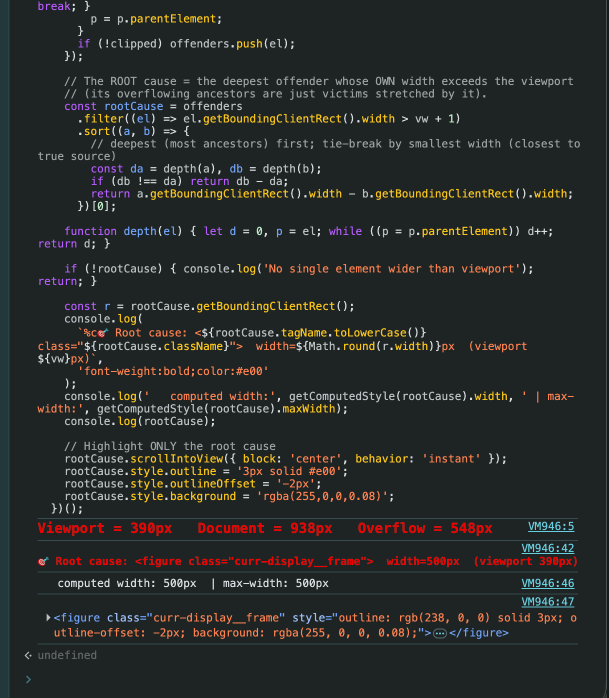
Overflow = 548px, and it names one element — a <figure> forced to width: 500px inside a 390px viewport — instead of the fifteen boxes that figure was dragging past the edge. That’s the line I pasted into the prompt. One measured cause beats a wall of symptoms.
When to measure instead of screenshot
Here’s the rule I pulled out of it, so you don’t have to memorize one CSS bug.
If the symptom is in the pixels, screenshot. If the cause is in the computation, measure.
A screenshot is the right tool when the problem is what you see — wrong color, bad spacing, overlapping text, an image that didn’t load. Your agent reads those straight off the picture.
Measure when the thing you’re chasing isn’t visual even though its symptom is. Horizontal scroll is the clean example: the gap is visible, the cause is a box-and-clip relationship you have to walk the tree to find. Same shape shows up in a few other places — a z-index bug where you can see the wrong thing on top but not why, or layout shift where the jump is visible but the trigger is a computed height that lands late.
When you hit one of those, the loop is the same four steps every time. Screenshot to confirm the symptom. A few lines of console script to measure the cause. The measurement into the prompt as structured evidence, not prose. Then the agent fixes from numbers instead of guessing from a picture.
Don’t keep feeding your agent screenshots and hoping. Ask what fact would actually settle it, write four lines of console script to pull that fact, and paste it in under “don’t infer, use these measurements.” A screenshot gives Claude something to look at. Measurements give it something to prove. The agent was never blind — it was just working a question that only a measurement could answer.